Table of Contents
Installing PolyHok 1.1 on Windows
This page documents how to install Elixir, Erlang and the necessary compilers and build tools for using PolyHok v1.1 on Windows. These steps were confirmed to work on Windows 10 and Windows 11.
Step 1: Installing Visual Studio Build Tools
Visual Studio Build Tools allows us to build Visual Studio projects from the command-line without having to install the entire Visual Studio IDE. In our case, we want to be able to compile a C++ project for Windows using Microsoft's official compiler, linker etc.
- Open your PowerShell and run the following command:
winget install Microsoft.VisualStudio.BuildTools
- Now, you will have the Visual Studio Installer application in your Start Menu. Open it.
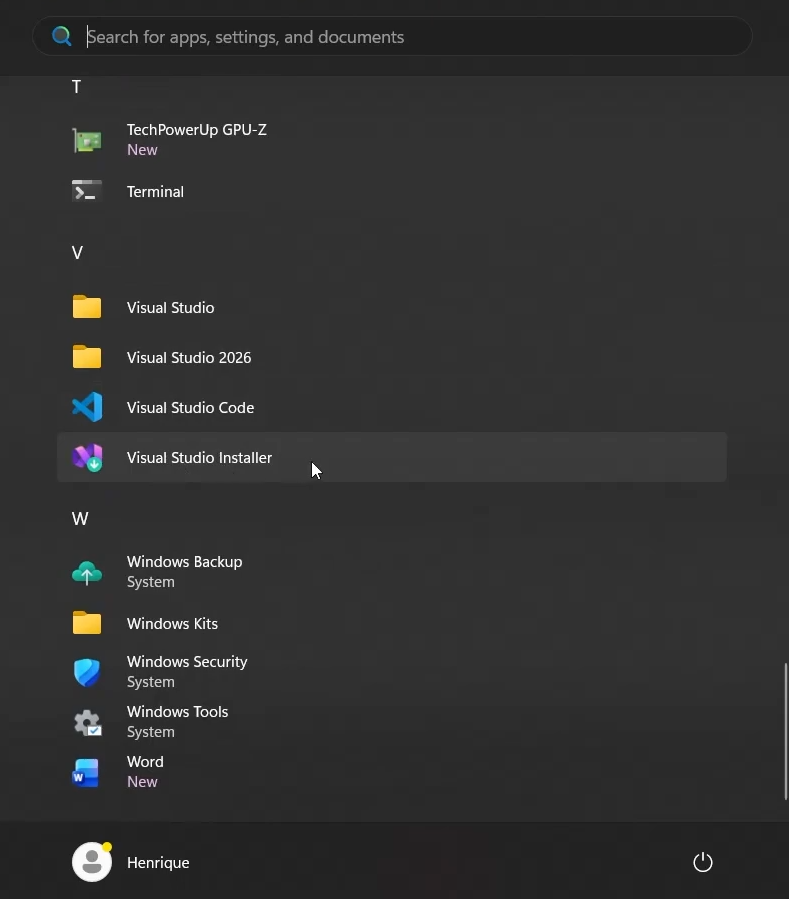
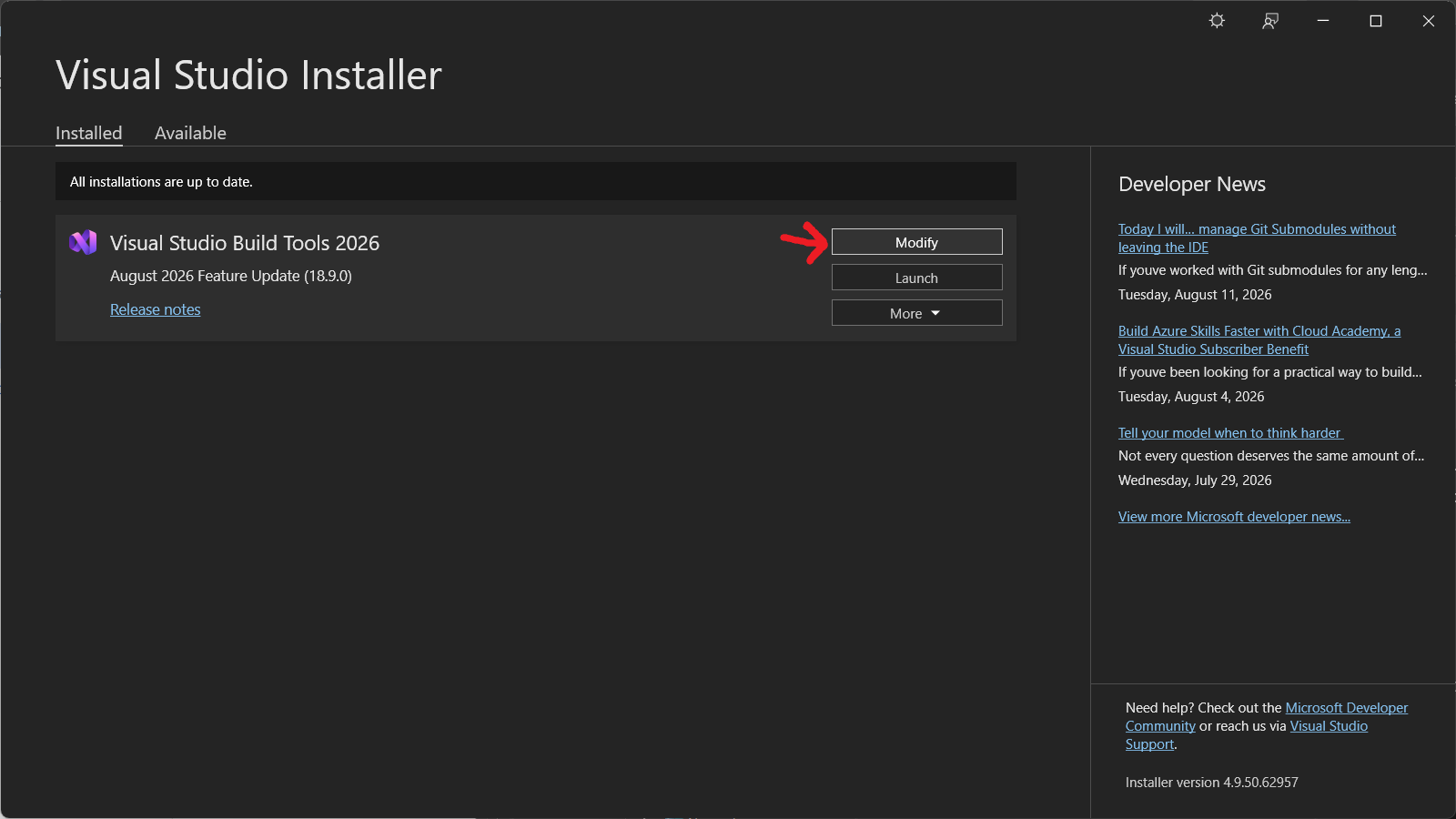
- Inside Visual Studio Installer, click the Modify button from the Visual Studio Build Tools item.
- On the new window that will appear, select Desktop development with C++.

- ⚠️ Important: Ensure the following installation options are selected!

- Click Install while downloading and wait for the installation to complete. It may take a few minutes depending on your machine and internet speed.


Step 2: Installing Mise
To install and manage different versions of Erlang and Elixir on Windows, we'll be using a tool called Mise. It is very similar to asdf in Linux.
The official Mise documentation explains how to install the tool in great detail, but you can follow these resumed steps here for convenience:
- Open PowerShell and install Mise with this command:
winget install jdx.mise
- After that, you will need to edit your PowerShell profile. A PowerShell profile is just a script that runs automatically before every time you open a new PowerShell session (similar to
.bashrcon Linux). This code will create a profile for you if you haven't one already:if (-not (Test-Path $PROFILE)) { New-Item -Type File -Path $PROFILE -Force }
- Now, open your profile in a text editor, like Notepad:
notepad $PROFILE
- Paste this:
(&mise activate pwsh) | Out-String | Invoke-Expression
- Save the file and restart your PowerShell.
- To check if everything worked fine, you can print your Mise version and run Mise Doctor in the terminal:
mise --version
mise doctor
Step 3: Installing Erlang and Elixir with Mise
Now that we have Mise installed and working, we can install Elixir and Erlang with it.
- List the available Elixir versions and pick one to install:
Once you choose an Elixir version, note its corresponding Erlang/OTP version to install. For example, if you pick Elixirmise ls-remote elixir1.19.3-otp-29, you must install Erlang 29.
Remember: PolyHok requires Elixir v1.17 at minimum to work!
- Now that we know which version of Elixir and Erlang/OTP to install, we need to install Erlang first (since Elixir depends on it). Run this command in your PowerShell (adjust the version number of Erlang to match your choice):
mise use -g erlang@29
- Now install Elixir (adjust the version to match your choice):
mise use -g elixir@1.19.3-otp-29
Step 4: Installing Backend Requirements
Now that Elixir and Erlang are installed and configured, the final step is to install the dependencies required for your chosen PolyHok backend.
OpenCL Backend
If you plan to use the OpenCL backend, follow the steps below.
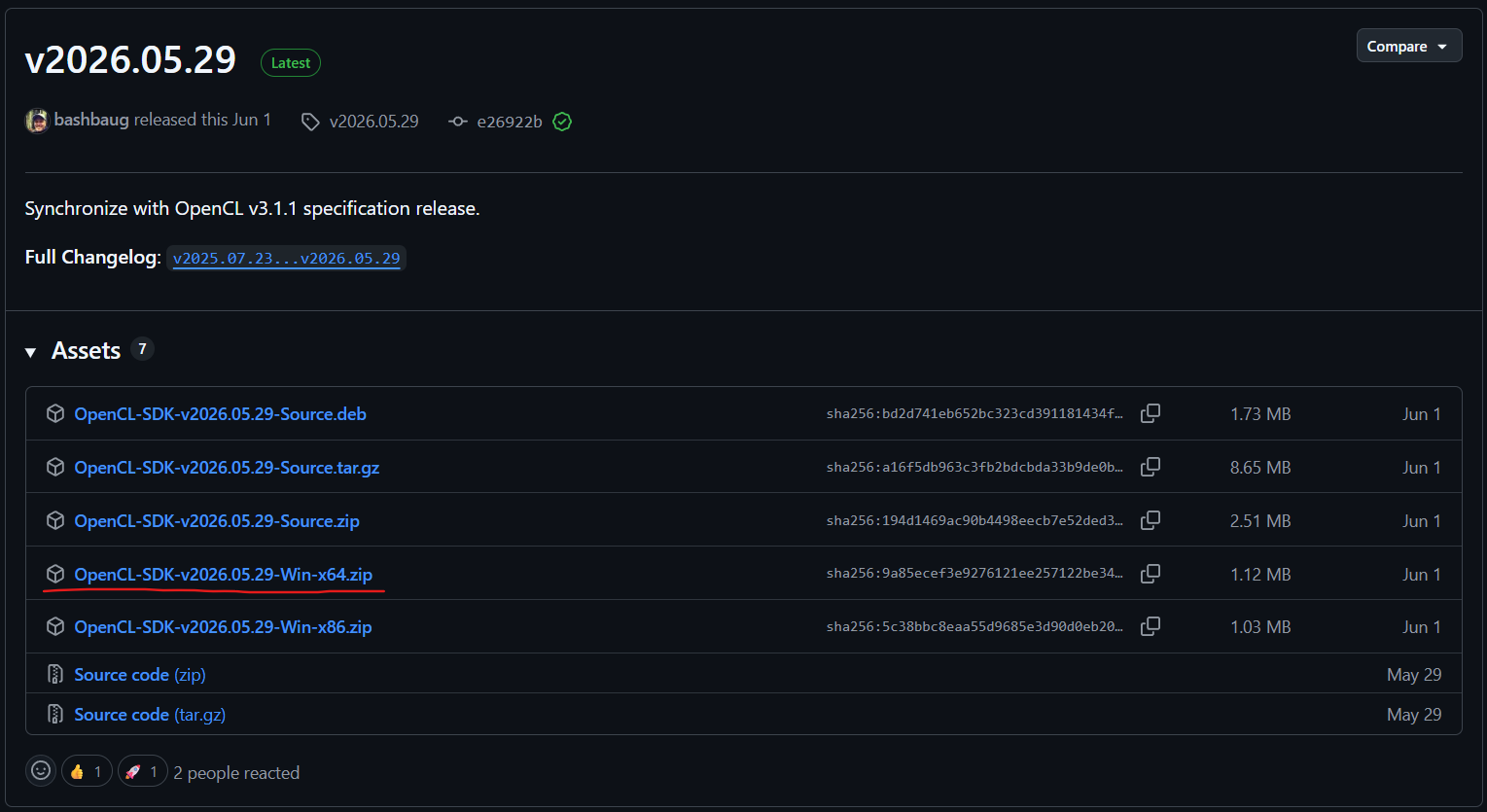
- There, download the latest SDK for your architecture. For example, the latest release at the time we are writing this page is v2026.05.29 and we downloaded the Win-x64 version (Windows 64-bit).
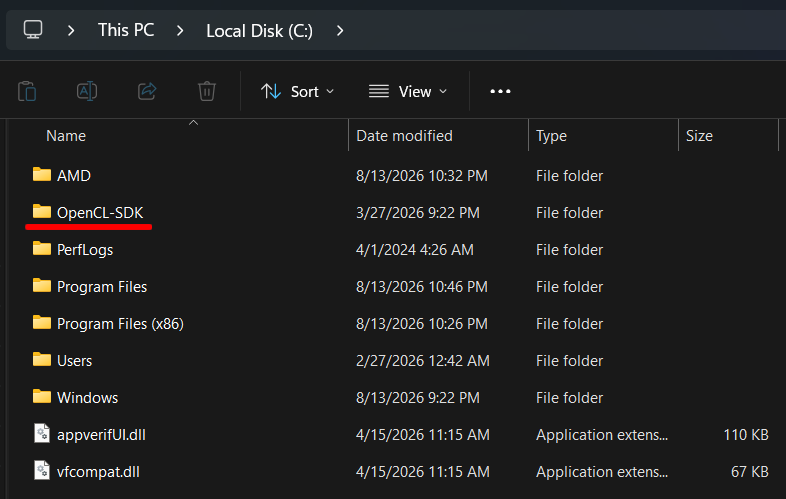
- Extract the zip file you just downloaded at the root of your C drive (
C:\). After extracting, you will have a folder named something likeOpenCL-SDK-v2026.05.29-Win-x64. Rename it to justOpenCL-SDK. After that, yourC:\directory will look like this:
- Now, we need to create an environment variable to point where our OpenCL SDK is located in our system. Open your start menu and type “environment variables”. Click this option:
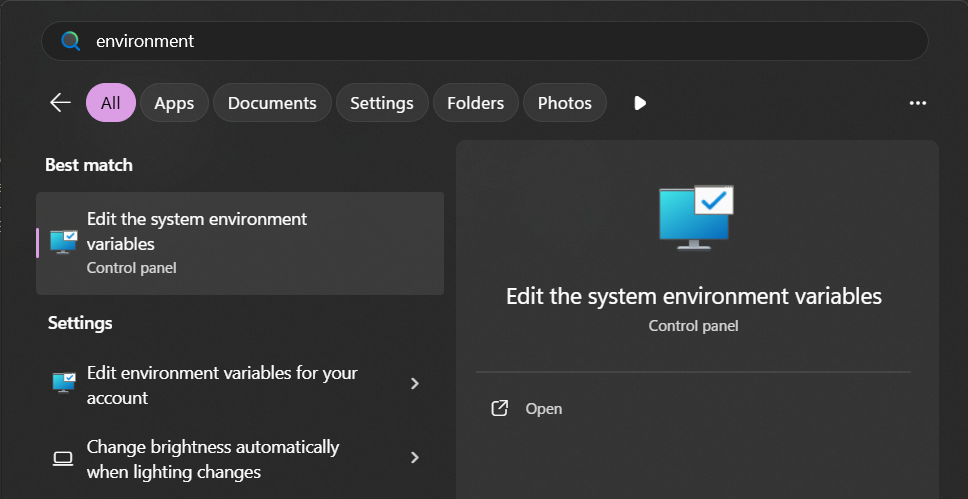
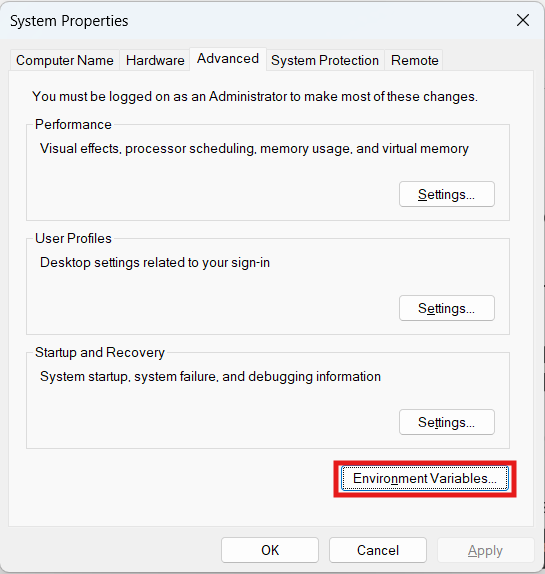
- In the new window that appears, click the “Environment Variables…” button.
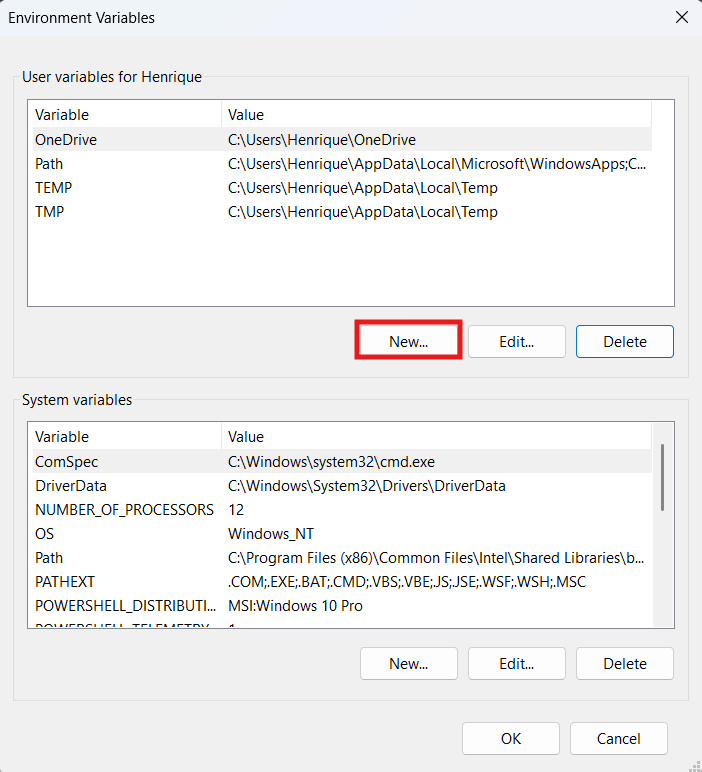
- Now you will see a window were you can create and edit existing environment variables. Click the “New…” button to create a new variable for your user.
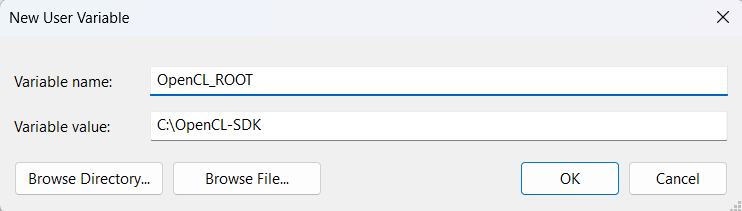
- A new window will pop up where you will set the name and value of the variable. In the name field, type exactly
OpenCL_ROOT. And as the value, type the path to the OpenCL-SDK folder in the C: driveC:\OpenCL-SDK.
- Click “OK” on all the windows and you will be ready to go!


CUDA Backend
If you plan to use the CUDA backend, all you have to do is install NVIDIA’s CUDA Toolkit, which contains the drivers, libraries, and compiler (nvcc) needed to build and link the NIFs for the CUDA backend. Follow the official NVIDIA Windows installation guide and you will be ready to go!